
Mac Mail Settings
Follow the instructions below to set up your email account in Mac Mail. Please note, these instructions are specific to the Mail app in MacOS Ventura. Sierra/High Sierra instructions are also available. If you are using a different MacOS version, the windows and menus may differ from the screens shown below.
- Open the Mail application (select the Mail icon from the Dock (menu) across the bottom of your screen)
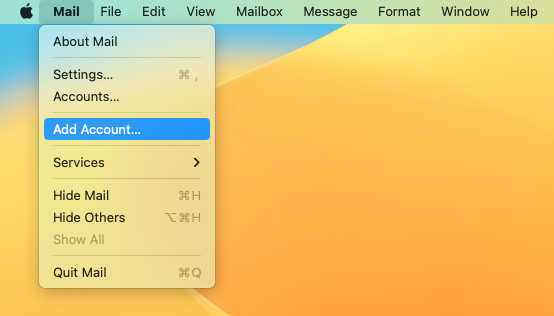
- From the top menu bar, select Mail > Add Account...
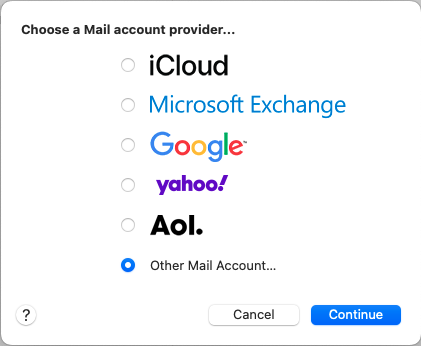
- A new window will appear. Select "Other Mail Account..." and click "Continue"
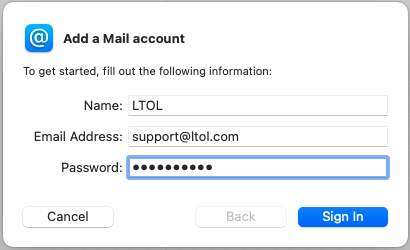
- Type in your Name, Email Address, and Password. The name will be visible to your email recipients, so we recommend entering your full name here. Click "Sign In".
- On the next screen, skip down to "Account Type" and make sure IMAP is selected.
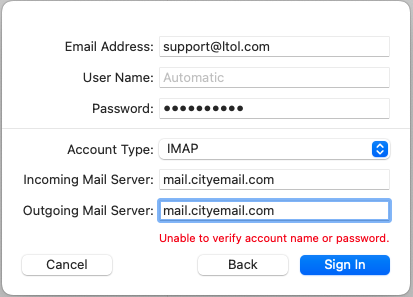
- For Incoming Mail Server, enter: mail.cityemail.com
For Outgoing Mail Server, enter: mail.cityemail.com - You may see a red error message, "Unable to verify account name or password". This is normal.
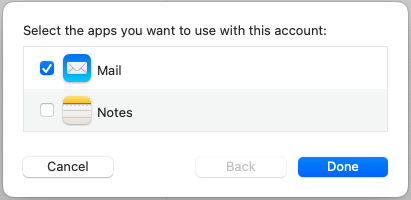
Click the "Sign In" button - Un-check "Notes" and click the "Done" button.
Your email account setup is now complete.

©2021 Lake Tahoe Online | Terms & Conditions | Acceptable Use Policy