
Outlook Email Settings
Follow the instructions below to set up your email account for Outlook 365, 2016, or 2019. Older version of Outlook should follow a similar process, but the settings screens make look different. If you need assistance setting up your email account with an older version of Outlook, please contact us.
- Select File from the top menu bar
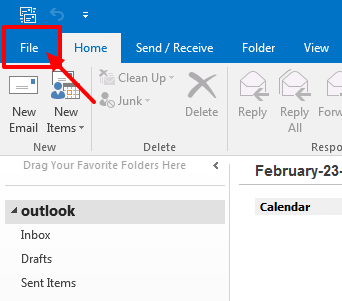
- Click the Add Account button

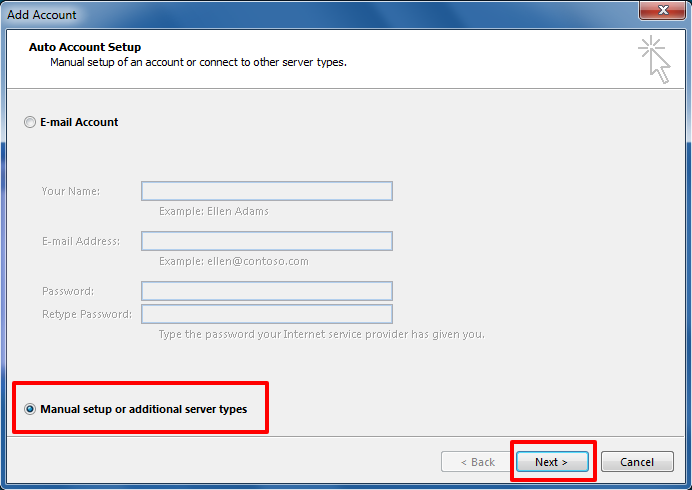
- Select "Manual setup or additional server types", then click Next
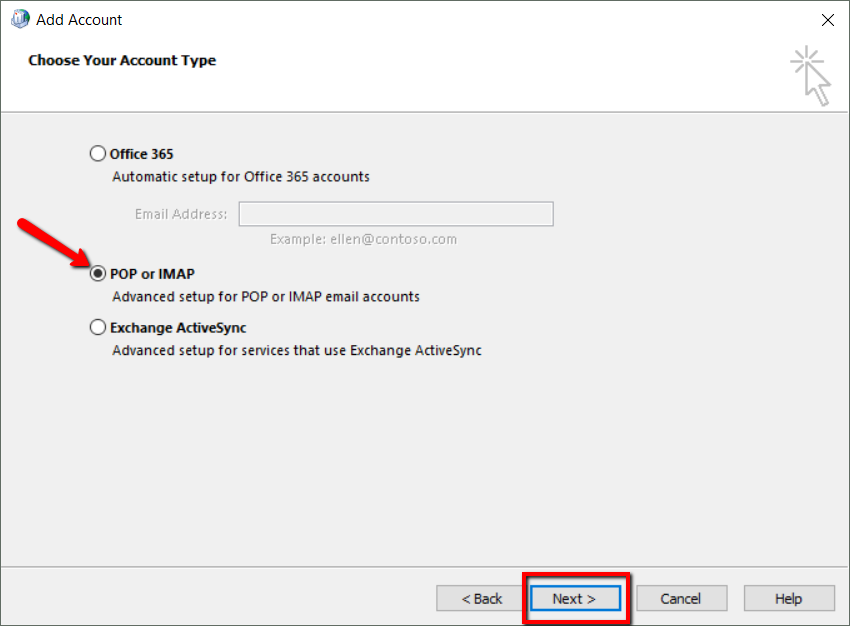
- Select "POP or IMAP", then click Next
- Under "User Information", type in your name and email address
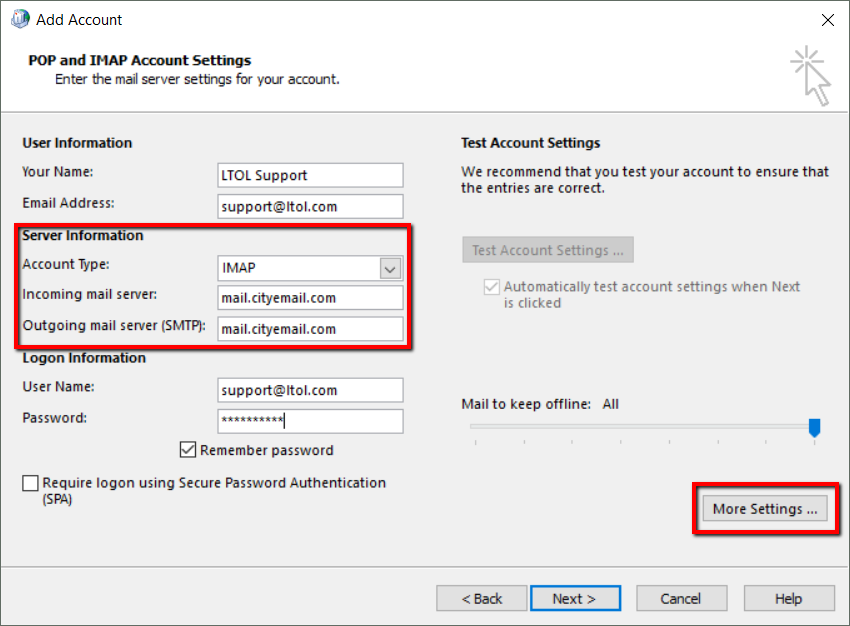
- Under "Server Information", select IMAP as the Account Type
- For Incoming Mail Server, type in: mail.cityemail.com
- For Outgoing Mail Server, type in: mail.cityemail.com
- Under "Logon Information", type in your email address and password
- Click the More Settings... button on the right
- Select the Outgoing Server tab
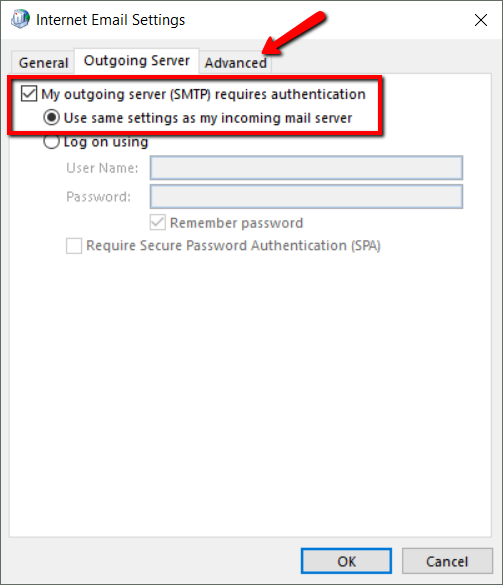
- Select "My outgoing server (SMTP) requires authentication"
- Select the Advanced tab
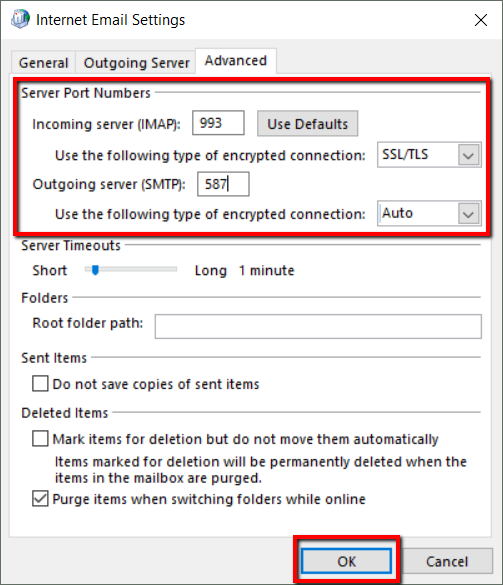
- Under the "Server Port Numbers" section, Incoming server (IMAP), enter 993 and select SSL/TLS from the encrypted connection menu
- For Outgoing server (SMTP), enter 587 and select STARTTLS or Auto from the encrypted connection menu
- Click the OK button
- Click the Next button at the Add Account screen view
Your email account setup is now complete.

©2021 Lake Tahoe Online | Terms & Conditions | Acceptable Use Policy