
iPhone and iPad Email Settings
Please follow the instructions below to set up your email account on an iPhone or iPad.
- Go to Settings
- Scroll down and navigate to Mail > Accounts > Add Account
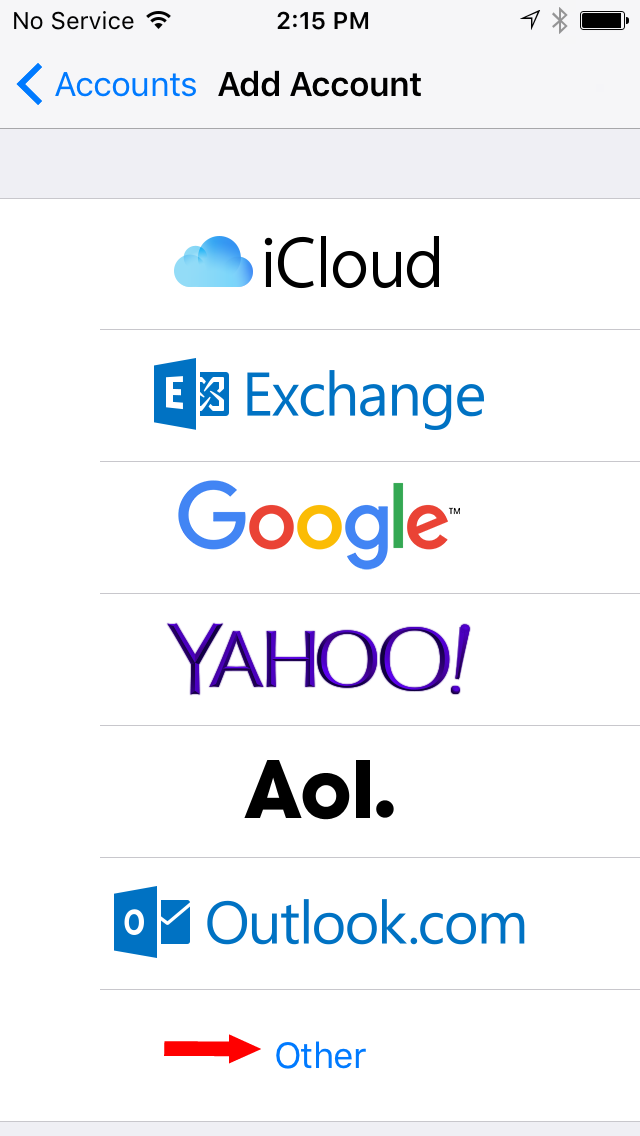
- Select "Other" at the bottom of the screen, then tap "Add Mail Account"
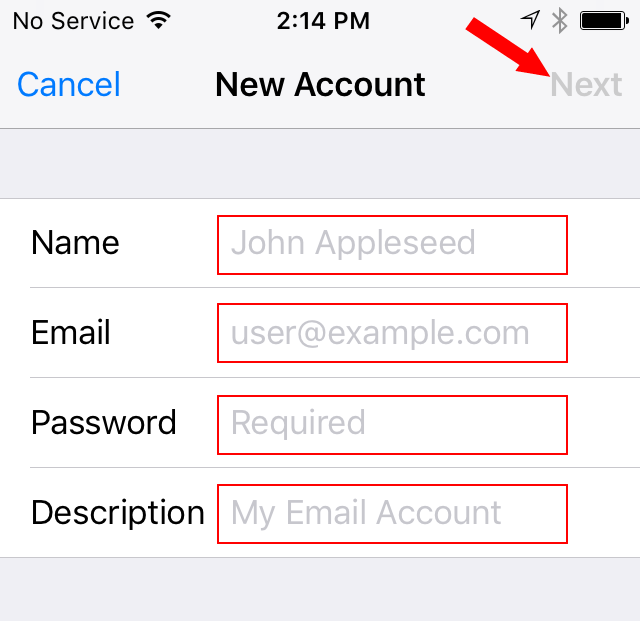
- On the New Account screen, fill in your Name, Email (full email address), Password, and Description, then press Next at the top
- Make sure "IMAP" is selected (highlighted in blue) and verify that Name, Email (full email address), and Description are correct
- Under Incoming Mail Server, enter mail.cityemail.com for the Host Name
- Enter your full email address for User Name
- Password should already be filled in. If not, enter your password.
- Under Outgoing Mail Server, enter mail.cityemail.com for the Host Name
- Enter your full email address for User Name
- Enter your password
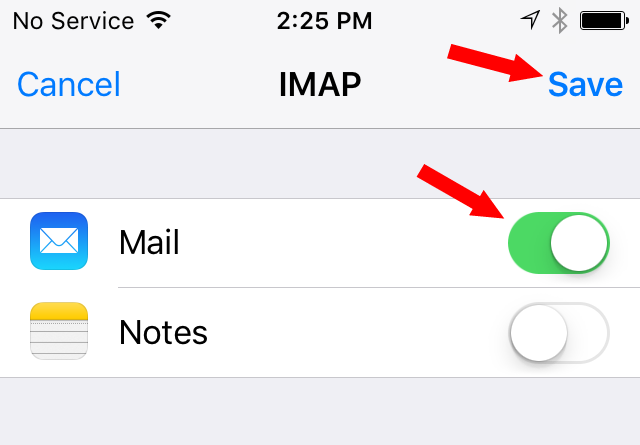
- On the next screen, make sure Mail is on (green). Select Save at the top.
Your email account setup is now complete.

©2021 Lake Tahoe Online | Terms & Conditions | Acceptable Use Policy