
Webmail Anti-Spam Settings
If you're having trouble receiving email from a particular sender or relevant emails continualy appear in your Spam folder, you can try adding an entry to the Whitelist in Webmail. Follow the instructions below to add an entry to your Whitelist.
- Go to Webmail at: webmail.ltol.com
- Enter your email address and password and click the Login button.
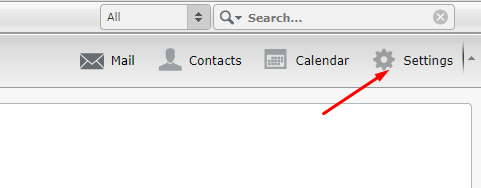
- In the upper right corner, click on "Settings" (gear icon)
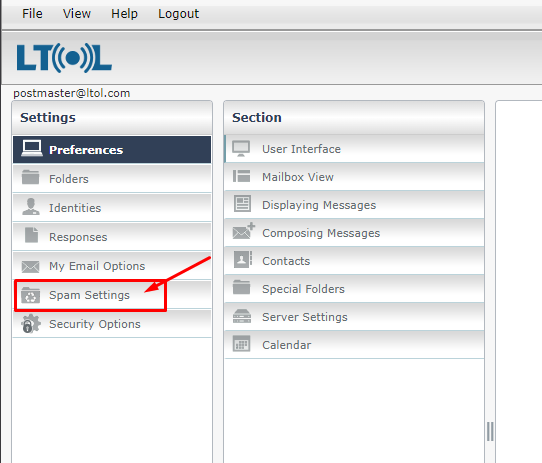
- Select "Spam Settings" from the menu on the left
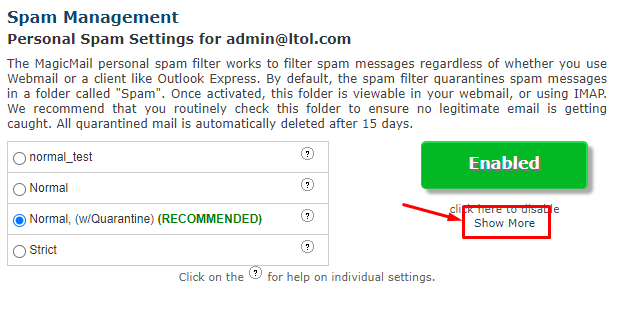
- Under the green Enabled button, click the "Show More" link
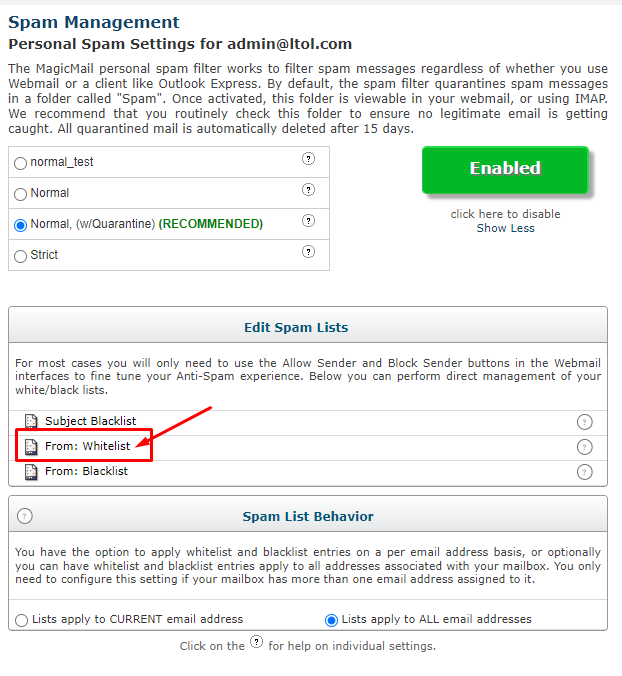
- In the "Edit Spam Lists" section, click on "From: Whitelist"
- In the form field labeled "Enter new value:", enter the email address of the sender you wish to white list and click Add.
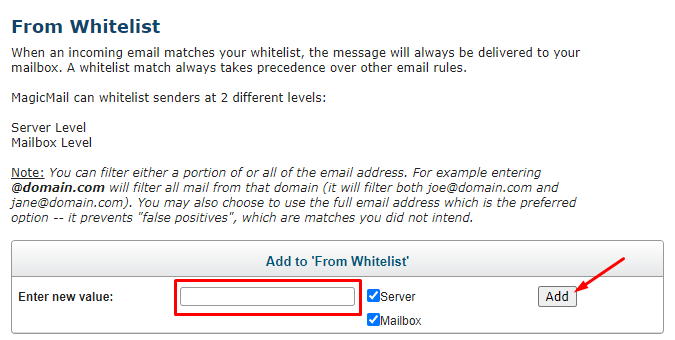
- Continue adding entries for any other senders you're having trouble receiving email from. Changes may take up to 15 minutes to take effect.
Alternatively, to block messages from a particular sender, you can add entries to the Blacklist. Follow the instructions above, but on step 6, choose "From: Blacklist" instead.

©2021 Lake Tahoe Online | Terms & Conditions | Acceptable Use Policy